

Did you know you can keep Oldmine right on your home screen, just like an app? No app store, no downloads, no updates to think about - it takes about ten seconds, and it's completely free.
Once it's there, the shop opens in its own window with the little Oldmine "O" on your screen, so new treasures are never more than one tap away. Here's how to do it on your device.
On iPhone or iPad
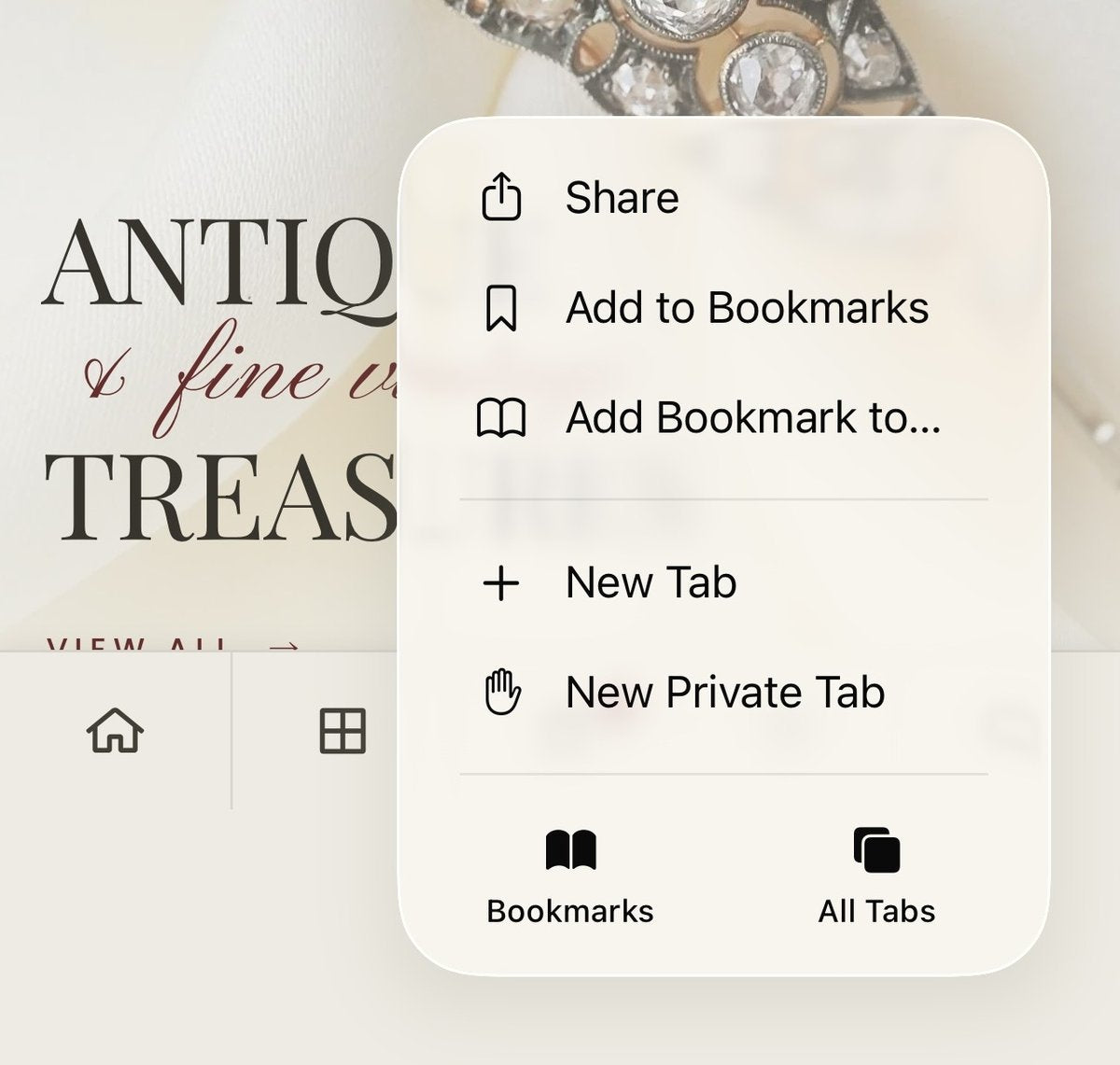
- Open oldmineshop.com in Safari (this part only works in Safari), and tap the three little dots next to the address bar at the bottom.
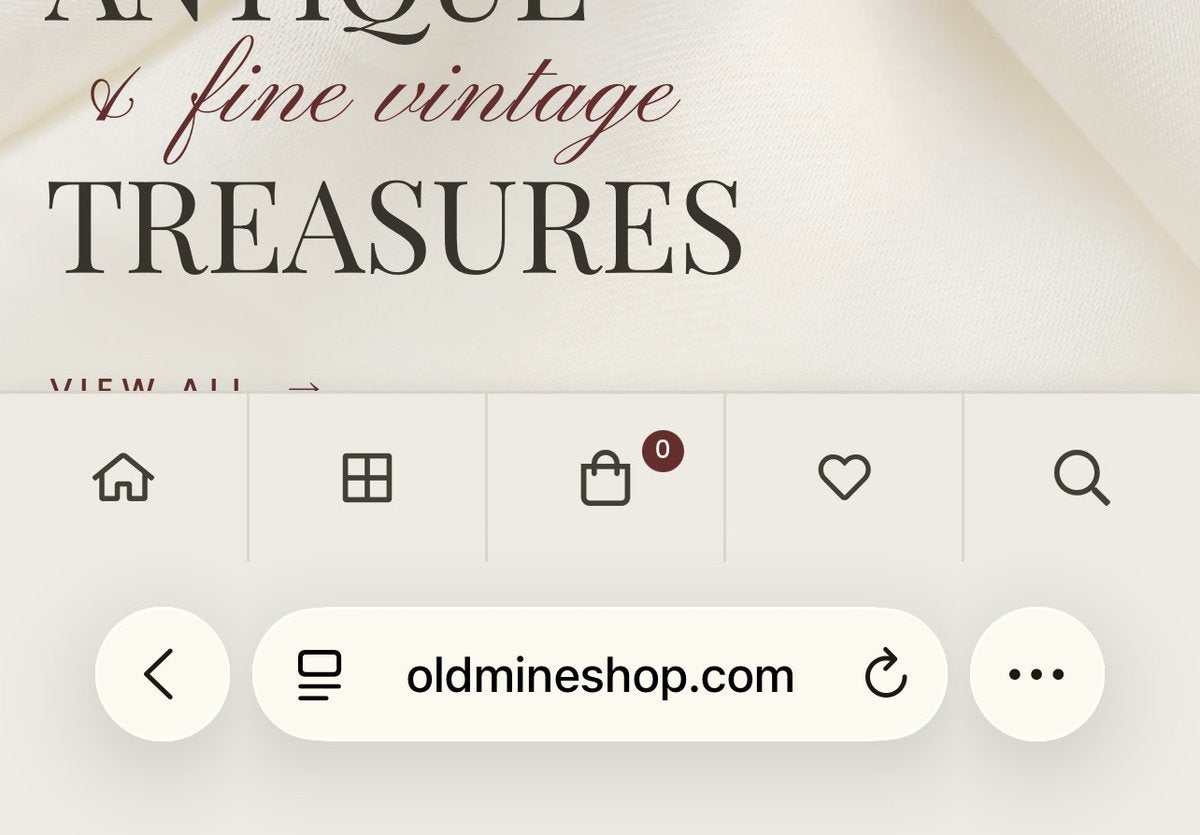
- Tap Share.
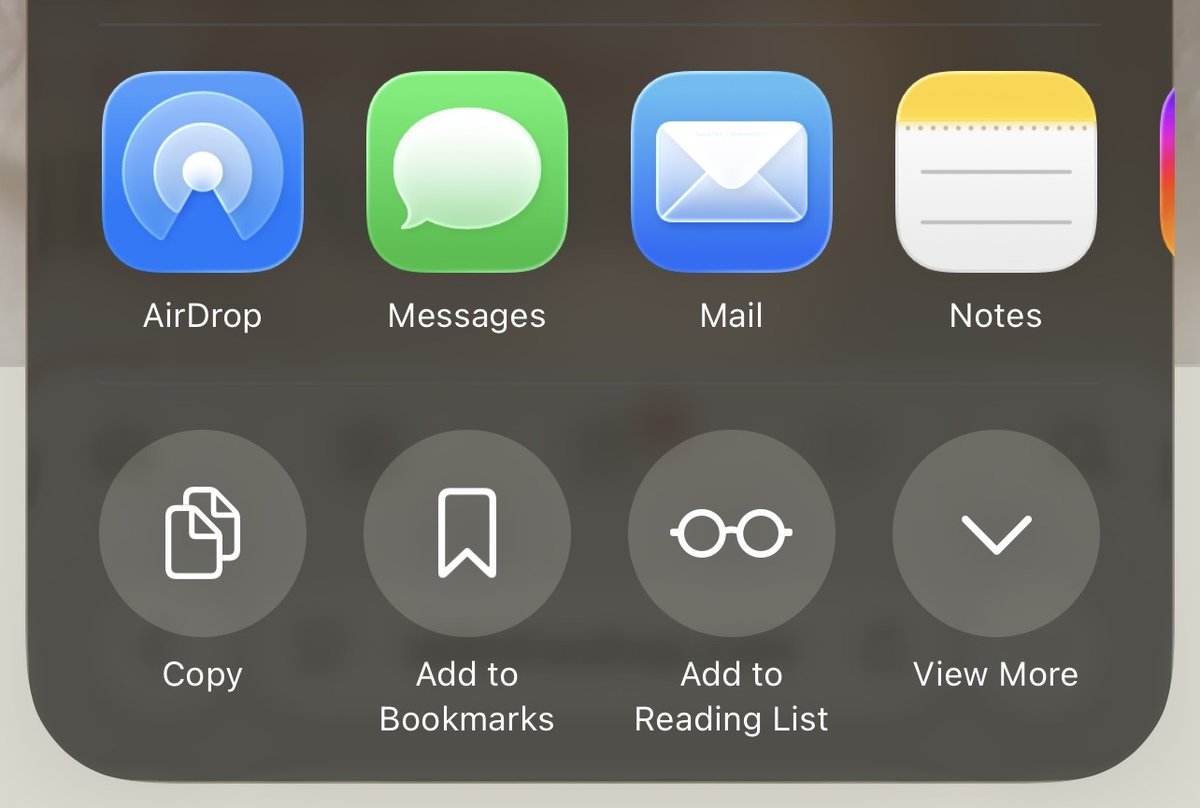
- Tap View More at the end of the row of round buttons.
- Tap Add to Home Screen.
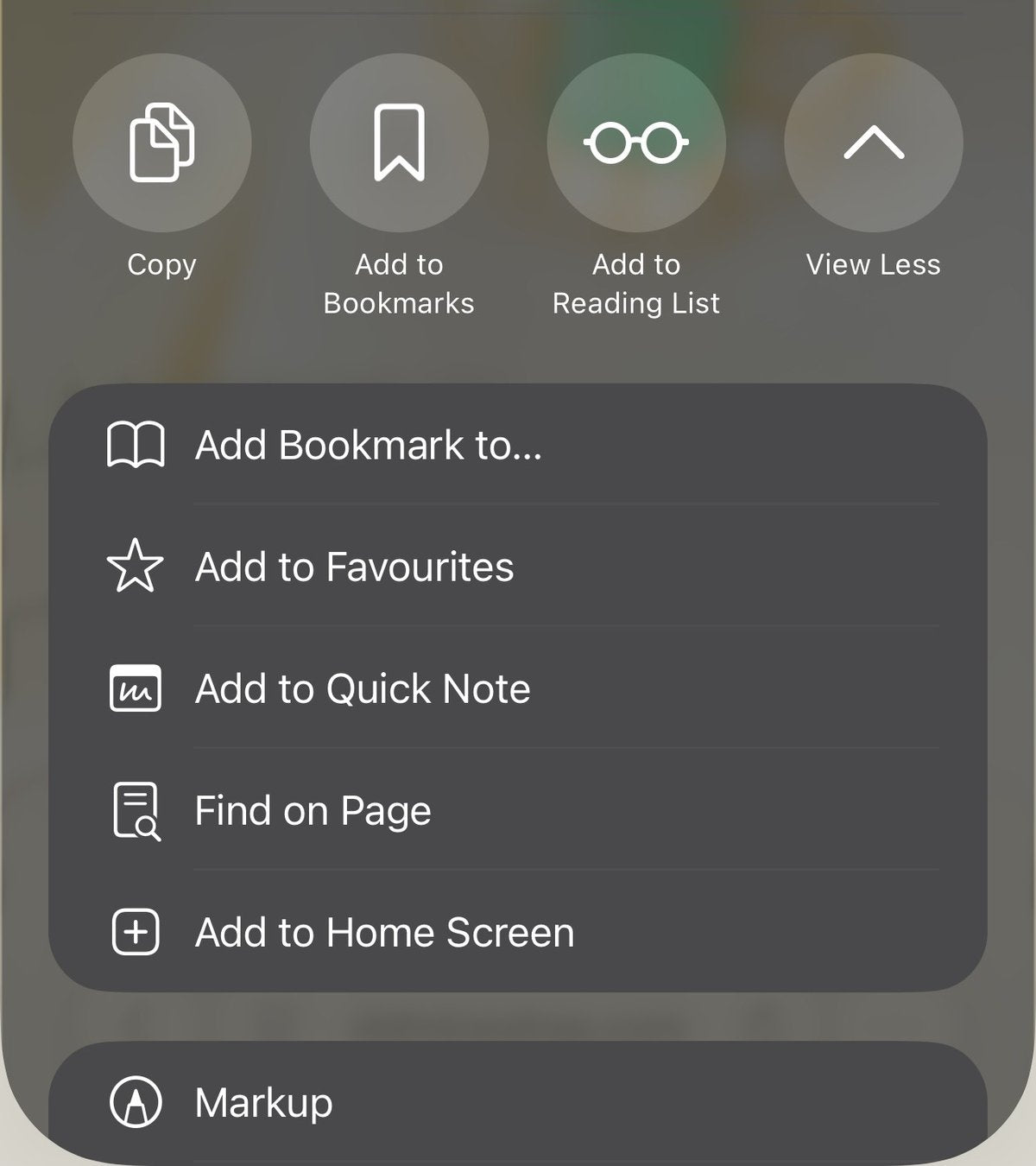
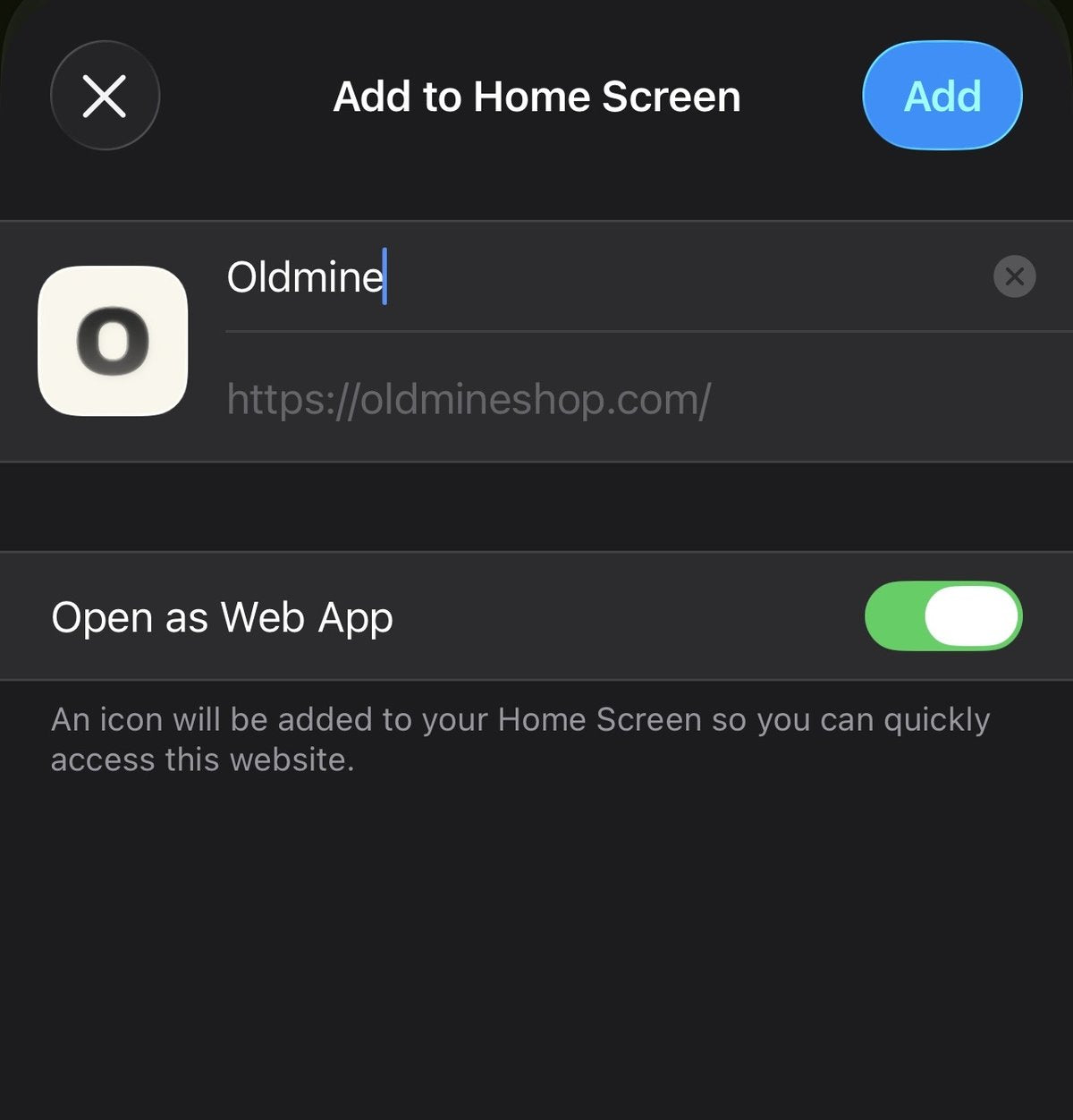
- Leave Open as Web App switched on, and tap Add in the top corner - that's it. The Oldmine "O" is now on your home screen.
If your Safari looks a little different and shows the Share button - the small square with an arrow pointing up - right there at the bottom of the screen, just tap that instead and continue from step 4. Same road, fewer stops.
On Android
- Open oldmineshop.com in Chrome.
- Tap the three dots in the top right corner.
- Tap Add to Home screen (on some phones it says Install app).
- Confirm with Add or Install - done. Look for the "O" on your home screen.
On your computer
- Open oldmineshop.com in Chrome or Edge.
- Look at the right end of the address bar - you'll see a small install icon (a little screen with a downward arrow).
- Click it, then click Install. Oldmine now opens in its own window, and you'll find it with your other programs.
A few things worth knowing
This isn't a separate app with its own account or anything to keep updated - it's simply the shop itself, dressed up as an app. You'll always see the newest pieces the moment they arrive, your cart and favorites work exactly as they do in the browser, and it doesn't take up any real space on your phone.
And if you love a treasure hunt, our sister marketplace Nextmine works exactly the same way - open nextminejewelry.com, follow the same steps, and you'll have her "N" sitting right next to the Oldmine "O" on your home screen.
If you ever change your mind, you remove it the same way you remove any app - press and hold the icon and choose remove. The shop, and your account, will of course still be right here.
Happy treasure hunting!
Line Evelin
